

Is your Android phone constantly showing a “Storage Full” warning? You’re not alone.
This is one of the most common frustrations Android users face, and it can do more than just block new downloads. Low storage can slow down your device, prevent important system and app updates, and even cause apps to crash or misbehave.
The good news? You don’t need to buy a new phone to fix it.
By the end of this guide, you’ll have at least several gigabytes of free space and a simple plan to keep your device fast, organized, and clutter-free for the long haul.
We’ll start by showing you exactly what’s eating up your space, then walk you through 15 simple, step-by-step tricks to fix it.
Understanding What’s Taking Up Your Storage
Before you start deleting things, it’s important to know where your space is going. This will help you target the biggest storage hogs first.
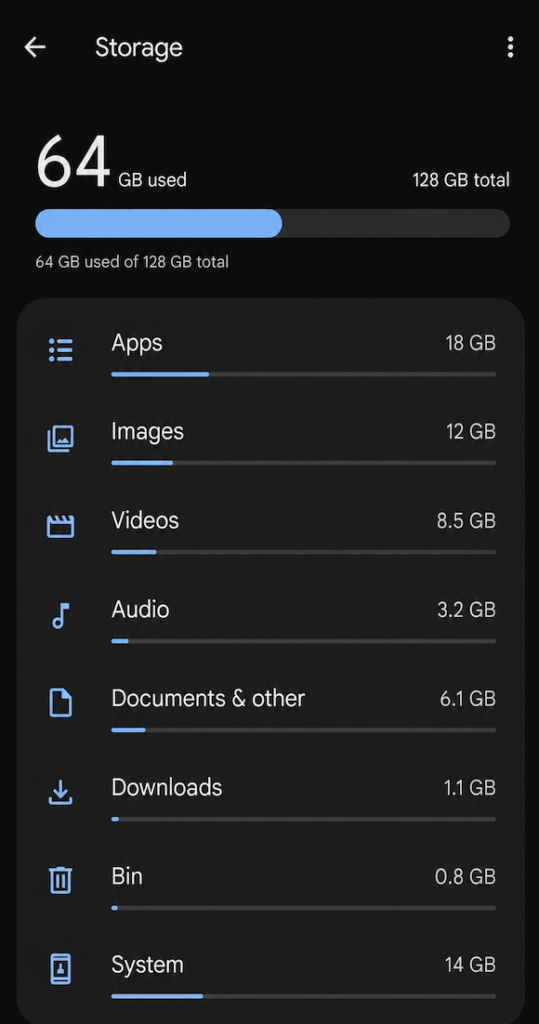
Check Your Storage Usage First
On most Android devices, you can find this in seconds:
- Open the Settings app on your phone.
- Tap Storage (this may be labeled “Storage & memory” or similar depending on your device).
- Review the breakdown by category.
What Usually Takes Up the Most Space?
| Category | What it includes | Typical impact |
| Apps | Installed applications and their data | Can range from a few MB to several GB per app |
| Photos and videos | Camera roll, screenshots, and downloaded media | Often the #1 culprit, especially for heavy users (can easily exceed 60% of storage) |
| Downloads | PDFs, APKs, images, and other files saved from browsers/apps | Builds up quickly if not cleaned regularly |
| Documents & other files | Spreadsheets, notes, ZIP files, etc. | Varies by user |
| System files | Android OS, cached system data, and pre-installed components | Necessary, but can include temporary files |
1. Delete Unused Apps
Why it helps
Unused apps don’t just sit there, many continue to store cached data, receive updates, and take up valuable space over time.
How to remove them safely
- Go to Settings > Apps (or “Apps & notifications”).
- Sort by “Size” or scroll through the list to find apps you rarely use.
- Tap the app, then tap Uninstall.
- Repeat for any others you don’t need.
Pro tip: Be careful not to uninstall apps that are critical to your device’s functionality or that you can’t easily replace.
2. Clear App Cache
What is cached data?
Cache is temporary data that apps store to help them load faster (like thumbnails, images, or recently viewed pages). It’s safe to clear and doesn’t delete your personal data, logins, or settings.
App data, on the other hand, is your personal information within the app and should generally not be cleared unless you’re troubleshooting.
How to clear cache
- Go to Settings > Apps.
- Select an app that uses a lot of space.
- Tap Storage & cache.
- Tap Clear cache.
Do this for heavy apps like social media, browsers, and streaming platforms first.
3. Remove Duplicate Photos and Videos
Why they accumulate
Duplicate files are common from multiple downloads, burst shots, forwarded media, and syncing across devices.
Best ways to find and delete them
- Manual method: Open your Gallery app and scan for obvious duplicates, but this can be time-consuming.
- Smart cleanup tools: Use a trusted app to automate this. A well-regarded option is Files by Google, which includes a “Duplicates” finder.
Always review duplicates before deleting to avoid removing something important.
4. Move Photos and Videos to Cloud Storage

Benefits
Cloud storage gives you virtually unlimited space for memories while keeping them accessible across devices.
Popular options
| Service | Free tier | Strengths |
| Google Photos | 15 GB shared with Google Drive/Gmail | Powerful search, automatic backups, and effortless management |
| OneDrive | 5 GB | Great for Microsoft users, integrates well with Android |
| Dropbox | 2 GB | Simple sharing and reliable sync |
How to do it
- Install your preferred cloud app and sign in.
- Turn on automatic backup for photos/videos.
- Once backup is complete and confirmed, use the app’s “Free up space” or manually delete local copies from your Gallery.
5. Empty the Downloads Folder
What you’ll find
This folder is a magnet for forgotten files: old PDFs, installation APKs, memes, and random documents.
How to clean it
- Open the Files app on your device (often called “Files by Google” or your manufacturer’s file manager).
- Go to the Downloads folder.
- Sort by size or date to spot large/old items.
- Select and delete anything you no longer need.
6. Delete Old Screenshots
Why they take space
Screenshots are uncompressed in many cases and can pile up quickly, often unnoticed in their own album.
Quick way to remove them
- Open your Gallery app.
- Find the Screenshots album/folder.
- Sort by date and delete batches of old ones you don’t need.
- Consider moving a few important ones to a secure folder or cloud if needed.
7. Remove Offline Content
Common sources
Streaming apps let you download content for offline use, but those files are often large.
- Netflix downloads
- Spotify downloads
- YouTube offline videos (YouTube Premium)
- Offline maps in apps like Google Maps
How to delete them
Go into each app’s settings/library and remove downloads you’re finished with. For Google Maps: Saved > Offline maps > select map > Delete.
8. Use Android’s Built-In Storage Cleaner
Your built-in options
Most modern Android phones include cleanup tools:
- Files by Google: A powerful, free tool that recommends junk files, duplicates, and large items.
- Device Care / Storage Manager (Samsung): Offers one-tap cleanup and ongoing optimization.
- Other manufacturer tools: Many brands include similar utilities.
How they help
These tools find files that are safe to delete and guide you through the cleanup in just a few minutes. For most people, they’re a great place to start.
Download Files by Google here if it’s not already on your device.
9. Delete Large Files You No Longer Need
Find the space hogs
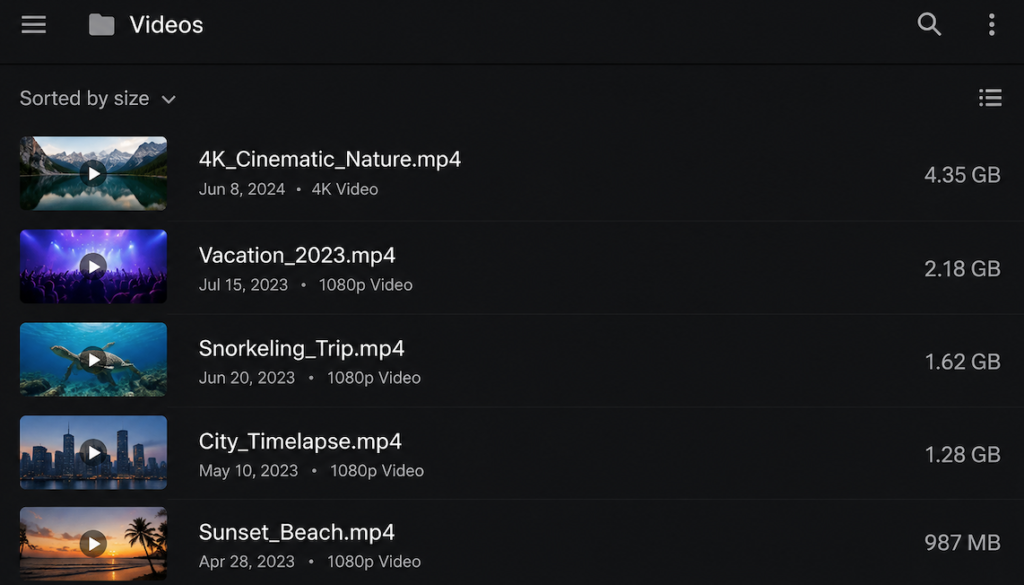
Videos, old project files, and ZIP archives are common culprits.
Easy methods
- Open your file manager.
- Sort files by size (largest first).
- Review the top items and delete anything irrelevant.
- Pay special attention to video files and long-forgotten backups.
Alt text: “How to free up storage on Android phone by finding large files”
10. Clear Messaging App Media
Why this matters
Messaging platforms automatically save incoming photos, videos, and GIFs. Over months, this can add up to multiple gigabytes.
What to do
- WhatsApp: Settings > Storage and data > Manage storage. Here you can review and bulk-delete media by chat or file size.
- Telegram: Settings > Data and storage > Storage usage, then clear cached media.
- Messenger: Settings > Photos & media > Clear cache/media as appropriate.
Make a habit of reviewing this every few weeks.
11. Move Files to an SD Card (If Supported)
Benefits
If your phone has a microSD card slot, this is a cost-effective way to expand storage.
What to move
- Photos and videos
- Large documents
- Music libraries
- Downloaded files
How
- Insert a high-quality SD card (preferably UHS-I or better for speed).
- Use your file manager to select files and “Move” them to the SD card.
- For some apps, you can change storage location in settings if supported.
Note: Not all modern phones include SD card slots, so this option may be unavailable on your device.
12. Delete Unused Downloads from Streaming Apps
Hidden consumers
Podcasts, music albums, and video downloads can linger long after you’ve consumed them.
Manage them
- Spotify: Your Library > Downloads > Remove any playlists/podcasts you don’t need offline.
- YouTube Premium: Library > Downloads > Delete watched videos.
- Podcast apps: Regularly prune old episodes.
13. Remove Old Backup Files
Where they hide
Local backups from apps, old system backups, or copies saved to your storage can be redundant.
What to do safely
- Check folders like Backups, TitaniumBackup (if used), or cloud-sync folders that may have local copies.
- Only delete backups you’re absolutely sure you don’t need.
- When in doubt, verify by date and importance, or keep the most recent one.
14. Use Lite Versions of Apps
Why they save space
Lite apps are stripped-down versions designed to use less storage, data, and RAM.
Examples
- Facebook Lite
- Messenger Lite
- Spotify Lite
- Google Go
These can be excellent alternatives if you don’t need every advanced feature.
15. Factory Reset as a Last Resort
When it makes sense
If your phone is still critically low on space despite all efforts, or is behaving poorly due to years of clutter, a reset can give you a clean slate.
Critical steps before resetting
- Back up everything important: Use Google One or your preferred cloud service for photos, contacts, and files.
- Sync app data: Ensure key apps are backed up to your account.
- Make a list of the apps you use regularly so you can reinstall them quickly later.
- Remove your Google/SD accounts if you’re planning to sell or give away the device.
How to perform it
- Go to Settings > System > Reset options (menu names vary slightly).
- Tap Erase all data (factory reset).
- Follow the on-screen prompts.
Tips to Prevent Storage Problems in the Future
Staying ahead of clutter is much easier than constant cleanup.
- Enable automatic cloud backup: Turn on Google Photos backup so new media is saved off-device by default.
- Do a quick sweep monthly: Spend 5–10 minutes clearing Downloads and messaging media.
- Avoid hoarding unnecessary files: Be selective about what you download and save.
- Monitor usage regularly: Check Storage settings once a month to catch new hogs early.
- Keep apps lean: Prefer lite versions when possible and uninstall what you don’t use.
Common Mistakes to Avoid
- Deleting important files without backup: Always verify before removing anything irreplaceable.
- Clearing app data instead of cache: This can log you out and erase settings.
- Using untrusted “cleaner” apps: Many are ad-heavy or make false promises. Stick with reputable tools like Files by Google.
- Ignoring large hidden files: Videos and old archives are often the real problem.
- Assuming SD card is a cure-all for everything: Not all apps can move there, and cards can be slower.
Quick Storage Cleanup Checklist
| Task | Done? |
| Uninstall unused apps | ☐ |
| Clear app cache for top offenders | ☐ |
| Delete duplicate photos and videos | ☐ |
| Back up media to the cloud and free up local copies | ☐ |
| Empty Downloads folder | ☐ |
| Remove old screenshots | ☐ |
| Clean messaging app media | ☐ |
| Delete large unnecessary files | ☐ |
| Use built-in storage cleaner | ☐ |
| Move eligible files to SD card (if available) | ☐ |
Conclusion
Low storage doesn’t have to be a permanent problem. As you’ve seen, the fix is usually a combination of smart cleanup and a few preventative habits.
Start with the easiest wins: clear your Downloads folder, remove unused apps, and run a quick scan with Files by Google. From there, move your media to the cloud and build a simple monthly routine.
Do one of these right now: open Settings > Storage and identify your top space hog. That small step is the beginning of a faster, more reliable phone.
You’ve got this—your Android device will thank you for it!
Frequently Asked Questions (FAQs)
1. Why is my Android storage still full even after I’ve deleted files?
This usually happens for one of three reasons: deleted files are still in the Trash/Recycle Bin, cached data remains, or the system hasn’t fully processed deletions. Also, some apps may have downloaded new media in the background. Try clearing cache and emptying any trash views in your file manager/gallery.
2. Does clearing cache delete personal data?
No. Clearing cache removes temporary files only. Your accounts, messages, photos, and settings remain intact.
3. How much free storage should I actually keep on my phone?
As a general rule, aim for at least 15–20% of your total storage free. For most users, that means 3–6 GB on a 32 GB device. This helps with updates and smooth performance.
4. What is taking up so much space on my Android phone?
For the majority of people, it’s photos and videos, followed by apps and their media. Use Settings > Storage to see your personal breakdown.
5. Are storage cleaner apps safe to use?
Yes, if they’re from reputable developers. We recommend Files by Google as a safe, ad-light option. Avoid apps that promise “miracle” gains or require excessive permissions.
6. Can I recover files I accidentally deleted?
Sometimes. If you act quickly, recovery is more likely. Check your cloud trash (Google Photos, Drive) and your device’s trash folder. For deeper recovery, specialized tools exist, but success isn’t guaranteed.
Read More on Techgili