

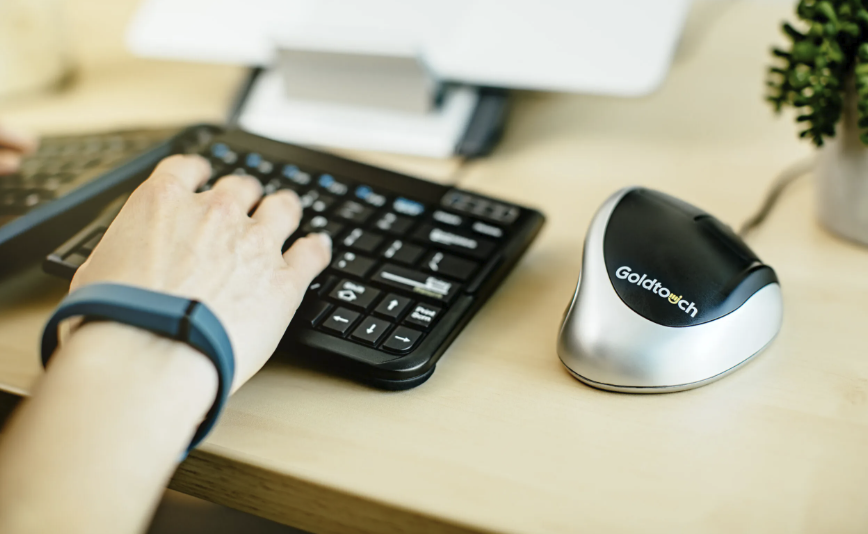
Many of us spend six to ten hours a day typing, clicking and scrolling, and the tools in our hands matter more than most people expect. A keyboard and mouse that suit your body can reduce strain, while a poor match can leave you stiff and tired by mid-afternoon.
In this article we will explore how keyboard layouts, key switches, mouse shapes and desk habits fit together, and how to choose gear sensibly without chasing marketing claims.
Your hands and wrists deserve a better setup
Typing and mouse work look gentle, but they involve thousands of small, repeated movements every day. Muscles and tendons in the fingers, hands, forearms and shoulders do this work, and they can become sore when the same positions are held for hours. Discomfort rarely arrives with a single dramatic event. It usually builds slowly, as a dull ache, a tingle, or a stiff feeling that you start to ignore.
The word ergonomics simply means fitting the task and the equipment to the person rather than forcing the person to fit the equipment. In an office context it covers the chair, the desk, the screen, the lighting and the input devices. Keyboards and mice get the most attention because they are the parts we touch most, and they are also the cheapest parts to change. A chair or desk can be expensive, but a new mouse is within reach for almost anyone.
It helps to be realistic about what gear can do. No product can cure a medical condition, and claims that a device prevents a specific injury should be treated with caution. What good equipment can do is make a neutral, relaxed position easier to hold and reduce how often you have to stretch, twist or press hard. Think of it as removing small annoyances that add up across a long day.
Before you spend anything, notice where you feel discomfort. Some people feel it at the outer edge of the hand, others in the forearm, the neck or the space between the shoulder blades. These locations give clues about which change might help most. A short weekly note of the time and the sore spot makes the pattern easier to see and can be shared with a doctor if needed. A sore neck often points to screen height, while a tight outer wrist often points to the keyboard or mouse position.
Posture and desk height come before any purchase
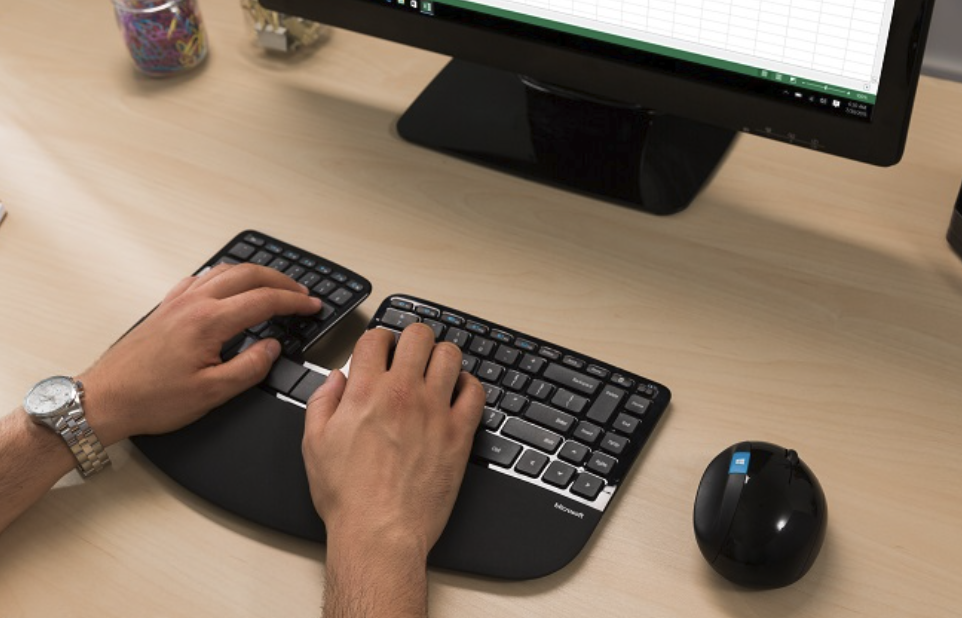
The most useful ergonomic change is often free. Sit so that your feet rest flat on the floor or a footrest, your knees are at a comfortable angle, and your lower back is supported by the chair. Your upper arms should hang relaxed beside your body, with your elbows bent to roughly a right angle, which is the commonly recommended starting point in workplace guidance. Your forearms should then be close to level, with the keyboard sitting at about elbow height.
If your desk is too high, your shoulders creep upward and your wrists bend upward to reach the keys. If it is too low, you slump forward and lean on your wrists. An adjustable chair with armrests can solve the first problem by raising you, and a footrest then supports your legs. A keyboard tray that lowers the keyboard can solve the second, though some trays are wobbly, so test one before relying on it.
Screen position matters too, because a screen that is too low or too far to the side makes you hold your head at an awkward angle. A common guideline is to place the top of the screen at or slightly below eye level, an arm’s length away, directly in front of you. If you work on a laptop, a separate keyboard and mouse combined with a stand or stack of books to raise the screen turns a poor setup into a decent one for very little money. This single change helps many people who work from kitchen tables and sofas.
Keep the mouse close to the keyboard so that you do not reach far to the side. A reach of even a few extra centimetres makes your shoulder work harder over a day. If you use a number pad rarely, a compact keyboard without one moves the mouse closer to your body, which is one reason smaller layouts are popular with ergonomic fans.
Here is a quick checklist you can run through in five minutes before you shop. Each row names a body cue, so you can match what you feel to a likely cause. Fix the rows that apply to you before spending money.
| Check | What to look for | Simple fix if it is wrong |
| Elbows | Bent to about a right angle, upper arms relaxed | Raise or lower the chair or desk |
| Wrists | Straight, not bent up, down or sideways | Lower the keyboard or add a soft wrist rest for pauses |
| Shoulders | Relaxed, not shrugged toward the ears | Use armrests or bring the mouse closer |
| Screen | Top near eye level, about an arm’s length away | Use a monitor stand or a stack of books |
| Feet | Flat on the floor or a footrest | Add a footrest or lower the chair |
Keyboard layouts and what they change
The standard keyboard places your hands side by side and flat, which forces your forearms to rotate inward and often angles your wrists outward. Ergonomic keyboards try to reduce that by changing the shape. The three main approaches are a fixed split, an adjustable split, and a tented design that raises the middle so your hands rest more like they would if you let your arms hang naturally.
A split keyboard separates the left and right halves, letting your hands sit at shoulder width. This keeps your wrists straighter and your elbows closer to your sides. Some are a single curved board, which is easy to adopt, while others are two separate halves that you can place anywhere. Separate halves give the most freedom, but they can feel strange and take time to arrange on the desk.
Tenting tilts the halves so the inner edges are higher than the outer edges. This reduces the inward rotation of the forearm, which many people find more relaxed. Tenting angles vary, and a gentle angle is a sensible place to start if you are unsure. Some users find steep angles uncomfortable at first, so adjustable designs are useful when you are learning what you like.
Keep in mind that a new layout changes how you type. Expect slower speed and a few mistakes for the first week or two, and sometimes longer. Giving yourself a gradual switch, such as using the new keyboard for part of the day, makes the change less frustrating. If you type for a living, avoid starting a new keyboard in the middle of a deadline week.
Also consider the physical layout of keys. A compact board without a number pad brings the mouse closer. Some designs move rarely used keys to the thumbs, which are strong and often underused. Others let you remap keys through software, which is helpful if you want your most used shortcuts in comfortable places. Check that any software you need works on your operating system before you buy, since compatibility differs between Windows, macOS, Linux, ChromeOS and mobile systems.
Switches, key feel and noise
The part of the keyboard that you press, the switch, shapes how typing feels. Switches differ in how far a key travels, how much force it takes to press, and whether it gives a click or a bump at the moment it registers. Low-force keys with moderate travel suit many people because they ask the fingers to push less hard. Very stiff keys can tire the hands, but very light keys can cause accidental presses.
Mechanical keyboards use a separate switch under each key, and they come in linear, tactile and clicky styles. Linear switches press smoothly without a bump. Tactile switches have a small bump that tells you the key has registered, and clicky switches add an audible click. Membrane and scissor-switch keyboards use a different construction, with a flatter, quieter feel that many laptop users already know.
There is no universally correct choice, and be wary of anyone who says there is. The right answer depends on your finger strength, your typing style and your environment. If you share a room or take many calls, a quiet linear or low-profile design is considerate. If you work alone and like feedback, a tactile switch may reduce the urge to bottom out each key, which is the habit of pressing every key all the way down with extra force.
That habit is worth noticing. Many people hit keys harder than needed, and the extra force travels through the fingers and forearms. Try to type with a lighter touch and let the key do the work. A simple exercise is to type a paragraph while deliberately pressing as softly as possible, then notice how little force is enough.
Key height is another factor. Low-profile keys keep the wrist flatter without a high wrist rest, while tall keys may need extra support. Keycap shape, such as dished or flat, affects how well your fingertips find the centre of each key. If you can, try a keyboard in a shop or borrow a friend’s for an hour, because specifications on a product page cannot tell you how a keyboard feels under your hands. Check the return policy where you live, since the rules vary by country and store.
A useful test is to type for ten minutes on a test document and then ask yourself three questions. Did my fingers feel tense, did I hear myself pounding the keys, and did I make more errors than usual? If the answers are no, the keyboard probably suits you. If you feel hesitant about the feel, give it a few days, because muscle memory needs time to settle before you can judge fairly.
Mouse shapes, grips and vertical designs
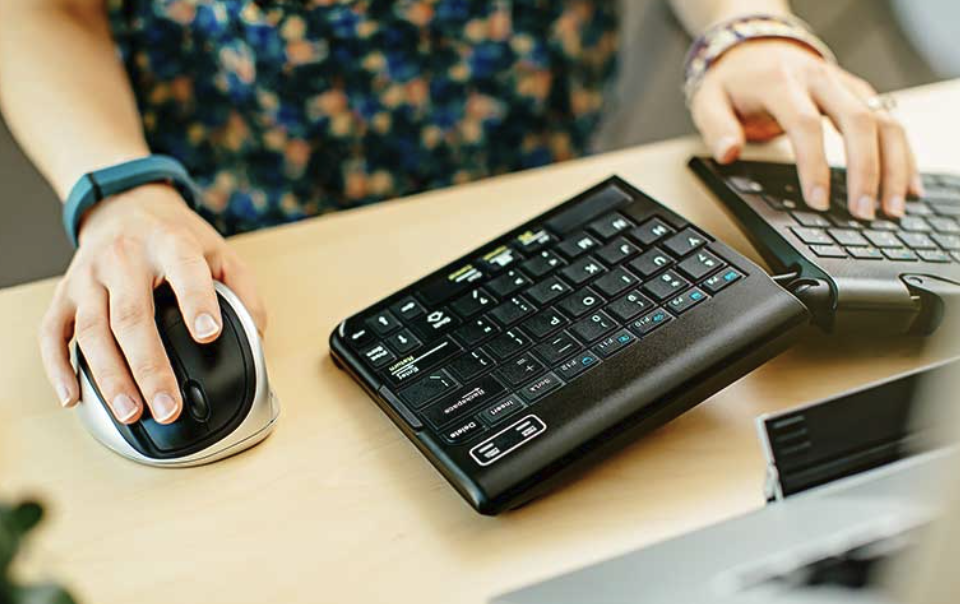
The standard mouse holds your forearm rotated so that the palm faces down, which twists the two bones of the forearm across each other. A vertical mouse stands the device on its edge, so your hand rests in a handshake position. This reduces the twisting for many users, and some find it eases forearm tension. Others find the grip strange, the movement less precise and the learning curve annoying, so a vertical shape is worth trying but not guaranteed to suit you.
Start by measuring your hand and noticing how you hold a mouse. In a palm grip the whole hand rests on the mouse, while in a claw grip the fingers arch and the palm touches the back. A fingertip grip uses only the fingers. A mouse that is too small forces your fingers to curl and squeeze, while one that is too large makes you stretch. Sizes and left-handed designs exist, though they are often overlooked.
Trackballs offer another approach. Instead of moving the whole arm, you keep the device still and roll a ball with the thumb or fingers. This can be a relief for people with limited desk space or sore shoulders, since it reduces arm movement. However, it uses the thumb or fingers more, so those with thumb pain should be careful. Trackballs take a few days to master, especially for precise tasks like image editing.
Pen tablets and touchpads are also worth mentioning. A pen is held in a lighter grip, which suits some people and can help alternate with a mouse. Alternating between two different pointing devices spreads the load across different muscles, and that variety is itself a useful strategy. Whatever you choose, keep the pointer speed at a level where you can move the cursor across the screen with small wrist-free movements from the forearm.
Finally, consider the buttons and the scroll wheel. Heavy clicking is tiring, so look for light, quiet buttons that need little force. If you scroll all day, a wheel that moves freely or a device with a thumb scroller can reduce repeated finger flicks. Extra buttons for back, forward and shortcuts can save you from reaching for the keyboard, provided you remember to set them up.
| Design | Hand position | Good for | Watch out for |
| Standard mouse | Palm down, forearm rotated | Familiarity and precision | Forearm twisting over long days |
| Vertical mouse | Handshake position | Reducing forearm rotation | Adjustment period and size fit |
| Trackball | Hand stays still, thumb or fingers move the ball | Small desks and sore shoulders | Thumb strain and a learning curve |
| Pen tablet | Light pen grip | Drawing and mixing up your muscle use | Less suited to general clicking |
A final point about mice is the way you move them. Try to steer with your whole forearm and elbow rather than flicking only the wrist, since the wrist is a small joint that tires quickly. Keep the mouse close, let your hand rest lightly, and avoid gripping hard. Many people squeeze the mouse without noticing, so check your grip now and then and let your fingers relax between clicks.
Wireless connections, battery life and comfort details
Many ergonomic devices come in wired and wireless versions, and the choice has practical effects on comfort. A wireless mouse is lighter to drag than one with a stiff cable, because the cable can tug against your movement. A wired keyboard never runs out of power and avoids pairing problems, which matters if you rely on it during meetings. Wireless links use either Bluetooth or a small radio receiver, and each has trade-offs.
Bluetooth connections work with many laptops, tablets and phones without a receiver, so they are handy if you switch between devices. They can sometimes lag or disconnect when many other wireless devices are nearby. A dedicated receiver usually gives a steadier link, though it takes up a port, which matters on slim laptops. Some devices offer both, and some can remember several devices and switch between them with a button.
Battery life varies by design. Some devices use replaceable batteries, others a built-in rechargeable battery with a cable. Replaceable batteries are easy to swap during a busy day, while rechargeable ones need a habit of charging overnight. Whichever you choose, keep a simple routine so the device does not die in the middle of a task, which tempts people to grip and press harder out of annoyance.
Weight and surface also affect comfort. A heavy mouse needs more force to move, while a very light one can feel twitchy. A smooth desk mat gives consistent glide and avoids the dragging that comes from rough surfaces. A palm or wrist rest can be pleasant, but it is meant for resting during pauses, not for planting your wrist while you type. Resting the heel of the hand on a pad and then pivoting the fingers can create pressure on the underside of the wrist, so float your hands lightly while you type and rest between bursts.
A cable-free keyboard also leaves your desk tidier, which makes it easier to move the keyboard to the best position for you. Wired devices are often cheaper and need no charging, which many office workers prefer. Neither choice is better for every person.
Finally, think about portability. If you move between a desk at home and an office, choose gear that is easy to pack and works without special drivers. Compact designs and travel-friendly cases are common. Match your choice to where you spend most of your time, and do not buy a large split board for a setup you will only use for an hour.
Shared and hybrid desks need flexible gear
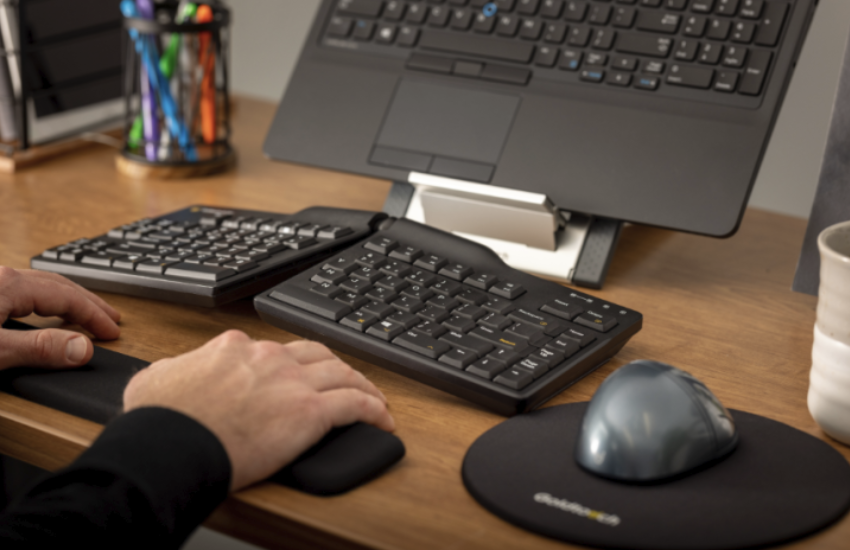
Not everyone has a permanent desk. Hot-desking offices, shared family study corners and kitchen tables all put you in front of equipment you did not choose. In these cases the most valuable ergonomic habit is to carry the few items that touch your body most, usually a compact keyboard and a mouse that fits your hand. Everything else, such as the chair and the screen, you adjust on arrival.
Spend two minutes at the start of each session. Lower or raise the chair until your elbows reach a comfortable angle, slide the screen to arm’s length, and place your keyboard so that your forearms are close to level. If the screen is too low, a laptop stand or a few sturdy books can lift it. It feels fussy at first, but the routine soon becomes automatic, and it protects you from the tired necks that come from a screen set up for someone else.
Devices that connect to more than one computer are useful here. Some keyboards and mice remember several paired devices, letting you switch between a work laptop and a personal tablet with a button press. Check that the pairing method works with the security rules of your workplace, because some organisations restrict wireless accessories or removable receivers. When in doubt, ask your IT team before plugging anything in.
Cleanliness matters on shared equipment as well. If you carry your own gear, wipe it down now and then with a cloth suited to electronics, following the maker’s instructions, and avoid soaking keyboards.
Keep a small pouch so the devices are not crushed in a bag. Compact, durable accessories repay the effort quickly when your workspace changes every week.
Breaks, stretching and signs you should see a professional
Even a perfect setup cannot make sitting still for eight hours healthy. The body is built for movement, and static positions tire muscles regardless of how neutral they are. Workplace health guidance commonly recommends changing position often and taking short breaks away from the keyboard rather than a single long break at lunch. A simple routine is to stand, walk a few steps and relax your hands every half hour or so, though the best interval varies by person and task.
Gentle stretches can help, as long as they never cause pain. Let your arms hang and shake your hands loosely. Open and close your fists slowly, roll your shoulders backward, and look away from the screen to rest your eyes. Do not force a stretch, hold your breath, or push through sharp or burning sensations. If a stretch hurts, stop.
Vary your tasks where possible. Mix typing with phone calls, reading on paper, walking meetings or planning on a whiteboard. Voice dictation can take over some of the typing, though it brings its own concerns for voice use and shared offices. Keyboard shortcuts can reduce mouse use, and mouse use can reduce keyboard use, so sharing the load keeps any one pattern from being overused.
Know the warning signs. Persistent pain, numbness, tingling, weakness, swelling, or night-time symptoms in the hands, wrists or arms deserve attention from a doctor or physiotherapist, not just a new gadget. Early advice often makes problems easier to manage. If your job provides an occupational health service or a workstation assessment, use it, because an assessor can look at your real desk and suggest changes that a general article cannot.
A new device should be introduced with care too. If pain starts or worsens after you change equipment, go back to your old setup for a while and seek advice. Comfort is a signal worth listening to. Your goal is to feel better at the end of the day, not to prove you can tolerate a new gadget.
Conclusion
Begin with the free changes. Adjust your chair, desk and screen, bring the mouse close, and set a reminder to move every half hour. Live with that for a week and note what still bothers you. This tells you whether you need a different keyboard, a different mouse or neither.
Next, change one thing at a time. If your wrists feel bent outward, try a keyboard with a gentle split or tent. If your forearm feels twisted or tight, try a vertical mouse or a trackball. Changing both at once makes it hard to know what helped, and it doubles the adjustment period. Give each change at least a couple of weeks unless it causes pain.
Set a sensible budget and check return policies before buying. Buy from sellers who allow trials or returns, since fit is personal and reviews cannot predict your hands. Prefer plain descriptions of size, weight, switch type, connection method and software support over vague promises about health. Avoid anything that claims to cure or prevent a medical condition.
Finally, keep the bigger picture in mind. Gear is a helper, while movement, variety, rest and good posture do much of the work. If something hurts for more than a few days, or if you notice numbness or tingling, speak to a doctor or another qualified professional. That advice is worth more than any product.